
Projects
Most activity in the Squonk Data Manager happens inside a project. This guide covers finding one, creating one, and the roles people hold in it.
The project you are working in is always the one in the address bar: there is no separate context to set, and nothing swaps a project underneath a page you already have open. This means the page you are looking at, the data it shows, and the link you can share with a colleague always agree. Your current organisation is the one exception, and is remembered between visits, because it is the identity the application is shown under rather than something a page displays. A few conveniences are kept in your browser as well — the projects you opened most recently, and whether you dismissed the offer described below — but none of them decides what a page shows you.
Finding a project
Choose Projects in the main navigation. This opens the index of the projects you can reach in the organisation you are working as.
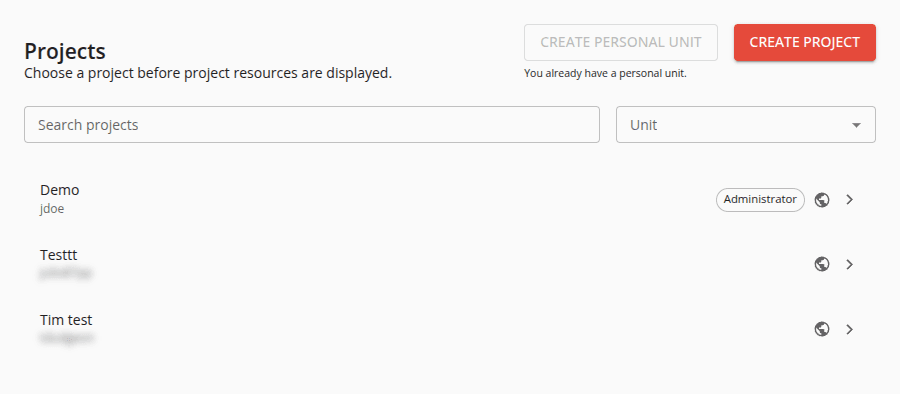
Each row states:
- the project's name,
- the unit that contains it, so that projects sharing a name can be told apart,
- the highest role you hold in it — Administrator, Editor or Observer, and nothing at all where you hold none,
- and whether it is Private or Public.
Rows are ordered by project name. A project whose containing unit your own reads cannot name is still listed, labelled with that unit's identifier rather than left blank, so nothing you can reach is missing from the list.
Two controls narrow it. Search projects matches a project or its containing unit. Unit narrows to one unit, and offers only the units that hold a project you can see, each with the number of projects in it. Those counts are for the whole organisation rather than for what you have just typed: the list of units describes where your work lives, and one that rearranged itself under the search would be answering a different question. A unit filter on its own therefore always leaves something on screen, though a search on top of one need not.
Both are held in the URL, so a narrowed list can be shared and survives a refresh. A shared link naming a unit that no longer holds a project you can see answers with the whole list rather than an empty one.
Where the list is empty, it says which kind of emptiness it is: no projects in this organisation at all, no match for your search, or no match inside the unit you narrowed to — which it names, and offers Show all units to leave.
Selecting a project opens its Files. To work in a different project, return to the index and choose it, or use the project name in the strip below the masthead, which opens a searchable list of the organisation's projects and goes to the one you choose — in the section you are already standing in rather than back to Files. Its footer says which section that will be before you choose.
That list opens on the three projects you opened most recently, under Recent, with the project you are already in marked and left out of them: it is not somewhere to go back to. Typing replaces the recents rather than narrowing them — recents answer "take me back" and a search answers "find me" — and matches a project's name, its unit or its organisation, with the heading counting what matched.
A project's four sections are:
- Files - browse, upload and manage the project's files.
- Run - find and launch workflows, applications and jobs.
- Results - follow what you have launched.
- Manage - details, privacy, people, coin usage and deletion.
Organisations and units
Your current organisation is shown as the application's identity. Changing it takes you Home first, so that content is never shown under an organisation it does not belong to. Opening a project that belongs to another organisation adopts that organisation before the project appears.
A unit is billing context rather than something you browse in. It decides who pays for a project or a dataset upload, so you choose one while creating a project or uploading a new dataset, and not at any other time. See the Concepts page for a fuller description.
If you are not a member of a unit in a named organisation, you can still create a project in the Default organisation, in a personal unit of your own. You are not given one automatically — you create it, either from the offer on the Projects index or from Administration. Getting started walks through this. Personal units are designed primarily for your own private use, though you can still make your projects public or add other people to them so that you can collaborate.
A member or the owner of an organisation can create a new unit within it, if you want a separate work space — a research group or a department, say. The Projects index offers this beside Create project: it asks for a name of at least two characters that no unit of that organisation already uses, creates the unit, and leaves you on the index rather than navigating anywhere. Administration creates units too, and owns everything else a unit has.
Which offer the index makes follows the organisation you are working as. The Default organisation cannot have units added to it other than each user's own personal unit, so while you are working as it the control offers Create personal unit instead — and says you already have one where you do.
Starting with no project of your own
Opening Projects with nowhere of your own to work leads with a panel that offers a way in. It is offered when you have no project in a personal unit of your own, or no project anywhere that you can write to. Being an observer somewhere does not count, and neither does having merely created a project: authority comes from a project's own membership lists.
The panel belongs to the Default organisation, because the unit it offers and the project that would go in it both live there — so it is not shown while you are working as another organisation, whose index could not list the project it would make.
The panel draws the hierarchy the thing it is about to create sits in — an organisation contains units, and a unit owns and pays for the projects inside it — and then offers two steps:
- Create your personal unit, your own billing container in the Default organisation, which nobody else works in. Where you already have one the step names it and is marked done instead.
- Create your first project, which opens the ordinary creation form with that unit already chosen, so that with several units to choose from you can see which one is meant.
Not now dismisses the panel, and is offered only where you can already write to some project. Where the offer is your only route into work of your own it stays put, because dismissing it would leave you exactly where it exists to rescue you from. A dismissal is remembered in your browser.
Where the organisation holds no project at all the panel is the whole index, since there would be no list for it to sit above; otherwise it sits above the list.
Creating a project
Use Create project on the Projects index. A project is created within a unit that you choose while creating it, which is what decides who pays for it.
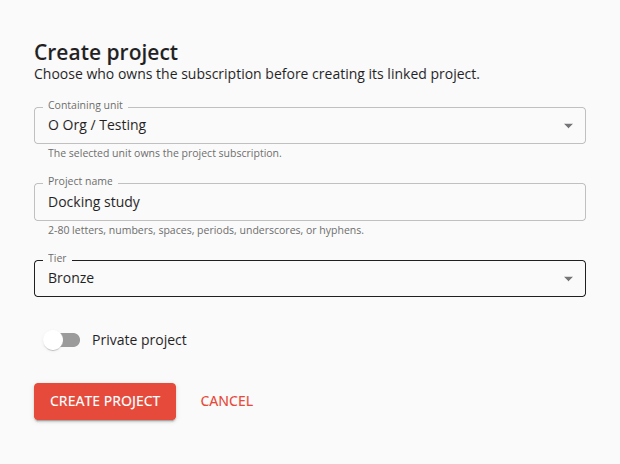
Containing unit offers every unit you may create in: one you are a member of, or one whose organisation you are a member of. Ownership does not come into it. Where you belong to neither, the field says so, and where you belong to no unit at all and have no personal one the form does not simply refuse — it offers to create your personal unit there and then. A link that named a unit, and an account with exactly one eligible unit, arrive with the field already filled in.
Project name takes 2 to 80 characters — letters, numbers, spaces, periods, underscores and hyphens — and may not begin or end with a space.
Tier decides how much the unit pays for and how much you can run. The tiers are described on the Concepts page.
Private project arrives set from the unit you chose rather than from a fixed default. A unit declares what privacy its projects take: some default to private, some to public, and some fix it either way, in which case the switch is shown but cannot be moved. Changing the unit re-applies the new unit's default over whatever you had set. Evaluation tier projects cannot be private at all, so choosing that tier turns the switch off and disables it.
An evaluator account is a special case here: it may create only in its own personal unit, and only at the Evaluation tier.
You do not need to be a member of a unit in order to use a project in that unit. The owner of the project can add you as an administrator, editor or observer to give you access, and you will have observer access to any public projects in the unit.
Once you have made your choices, create the project. You enter the new project's Files only once both its subscription and the project itself have been created and linked, so the project you land in is a complete one.
Remember that the owner of the unit is responsible for the costs of your project. In the case of a personal unit in the Default organisation, that means you.
Starting from an existing subscription
Administration can send you here from a subscription that has no project yet. The unit, name, tier and privacy then come from that subscription rather than from you, and cannot be changed — they are its own — and the button reads Create linked project. Where the subscription cannot be used, the page says why and offers a way back to Subscriptions.
When creation does not complete
Creating a project is two things in two services: a subscription is taken out in the unit first, and then the project itself is created against it. The form is built so that a failure between the two cannot cost you a second subscription.
A subscription that has been taken out goes into the address bar before the project is requested, and the attempt is remembered for the rest of your browser session. Reloading the page, or returning to it later, resumes that same attempt rather than starting a new one, and the page names the subscription it will reuse.
Retry re-reads that subscription before sending anything. If the project was in fact created and only its answer was lost, you are taken into its Files rather than a second one being made.
Cancel removes a subscription this attempt took out, and nothing else. A subscription you arrived with is released rather than deleted — it was never this page's to remove — and the page names it so that you can deal with it in Administration.
Where the subscription request itself could not be confirmed, the page will not send it again on its own, and says to check Subscriptions before starting over.
Roles
You can add other people to your project as administrators, editors or observers. The roles are described on the Concepts page.
To add or remove people, open the project and go to its Manage section, which is also where you change the project's privacy. Manage stays available to project observers, so you can always see a project's details even when you cannot change them.
What you are allowed to do
Throughout the application, an ordinary action you cannot currently use is disabled and states its reason, rather than being silently removed — so it is clear what role or relationship a task requires. Actions only a platform administrator can ever take are hidden instead. Where the server refuses a read outright, the page keeps everything it can still show and says which part is missing.
These markings decide what is offered and how it is presented. They are not the security boundary: the Data Manager and the Account Server decide what is actually permitted.