
Results
A project's Results section shows what has been run in that project, and nothing from any other project. Each result is summarised on a card that expands to show what it did.
There are three kinds of result, and the section can be narrowed to any of them:
- Workflows - executions of a workflow definition.
- Tasks - work the Data Manager carried out on your behalf, such as attaching a dataset version to the project.
- Instances - runs of an application or a job.
The heading counts what the current narrowing left. Where nothing was withheld it states the total —
4 results; where something was, it states the fraction — 2 of 4.
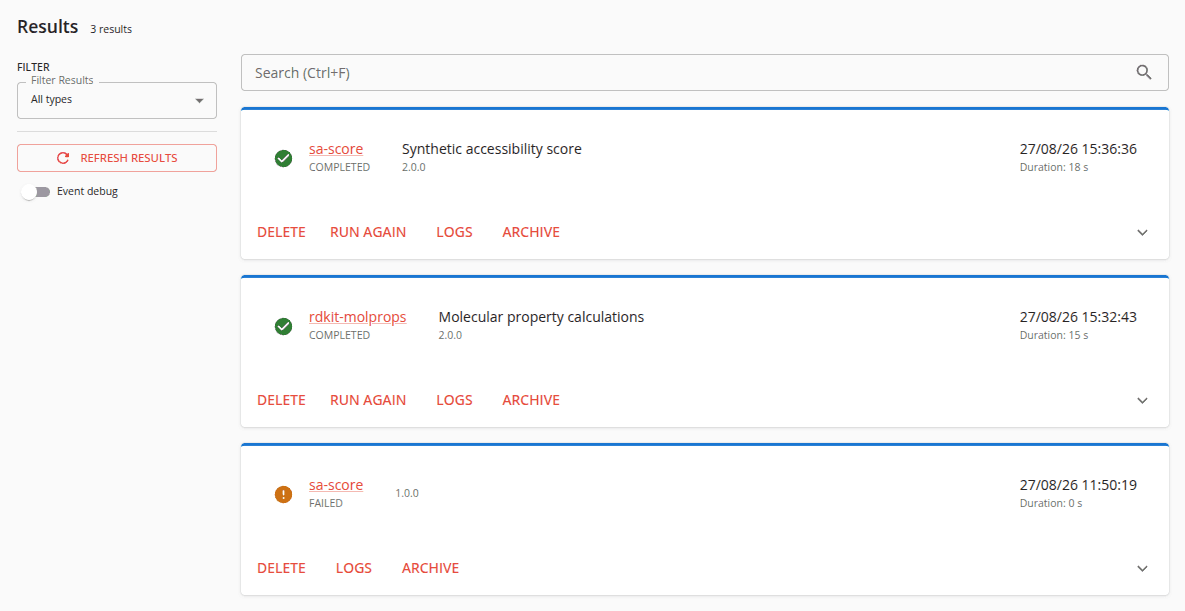
The controls
The controls sit in a rail beside the list rather than above it, so the first thing you read on the page is the results themselves. The rail sticks as the list scrolls, so a long list can be narrowed without scrolling back to the top.
Filter Results narrows the list by type — Workflows, Tasks and Instances. Selecting none of them, or all of them, is the same thing: the list shows All types.
Refresh results reads the section's collections again. The list does not read itself, so a result you have just launched, or one that has just finished, appears as the page last read it.
If part of the section could not be read, it says so above the list, and results it could not refresh cannot be changed until they load again. The three collections are read separately, so one failing read does not withhold the other two.
Beneath that control, Event debug shows an expanded result's DEBUG-level events, which are hidden until you ask for them. The setting is remembered in your browser and applies to every result you look at.
The search field sits above the list and matches more than a name: an instance by its own name, the
job it ran and its state; a task by its purpose and the stage it reached; a workflow by its name.
Typing FAILED therefore narrows the list to what failed. The field's label states its shortcut —
Ctrl+F, or ⌘F on a Mac — which focuses it in place of the browser's own find.
Every narrowing is held in the URL, so a narrowed list can be shared and survives a refresh.
The definition filter
Following a definition's execution count from the Run catalogue opens Results narrowed to that definition. The rail then states which definition the list is narrowed to as a chip, in place of the type filter — the two narrowings are mutually exclusive — and the chip clears the narrowing.
A job card's count links to the version it is offering, so the list is narrowed to that version and
the chip names it — Job: sa-score (2.0.0). An application or workflow card represents the whole
definition, so its link narrows to every execution of it.
If the list is empty, it says which definition it was narrowed to, so "this definition has never run here" is distinguishable from a page that is simply broken. If the definition itself is no longer in the catalogue, the section says so and shows every result in the project rather than an empty list.
One result
Each card carries the result's name, its state, and when it started and finished. Expanding a card reveals its details in place; selecting it opens the result at its own URL, with All results leading back to the list you came from — narrowed exactly as you left it.
The actions offered depend on what the result is and on what you may do in the project. Where an action is unavailable, the card states the reason rather than hiding the action.
An instance — a run of a job or an application — offers these:
- Terminate (or Delete, once it has finished) - releases the resources the instance might still be consuming. Either asks you to confirm before it is sent. Remember to do this once your job is complete and you are happy with it. The job's result files are not deleted, but intermediate and log files will be, as well as any remaining Kubernetes resources.
- Open - opens the instance's own interface in a new browser tab. An application publishes one; a job does not.
- Run again - opens the job's launch form again, prefilled, so you can run it with the same or different settings.
- Logs - opens that instance's own log directory in the project's Files. Only a job's card offers it, and it is the first place to look when a run did not do what you expected.
- Archive protects the instance from being deleted automatically. Once it is archived the control reads Unarchive, and the card carries a marker saying it will not be deleted.
A task offers Delete alone. A workflow offers Stop while it is running and Delete once it has finished.
Expand a running workflow and it lists its steps, so you can see which one it has reached.
Inputs, outputs, states and events
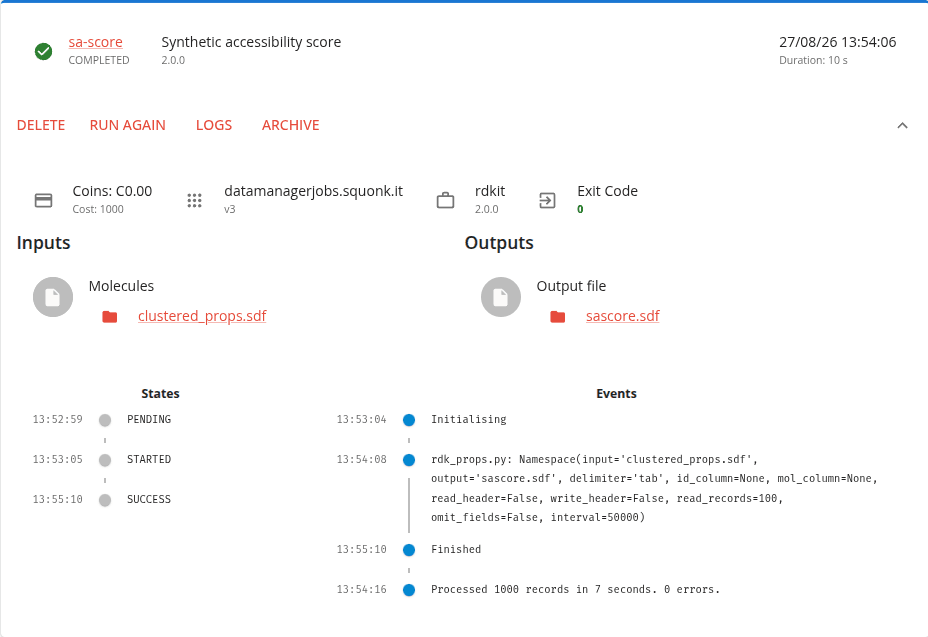
Information about what was executed is displayed at the top of an expanded result. Below that are its inputs and outputs, each offered two ways: the folder icon beside it opens the directory holding it in the project's Files, and the file's own name opens a short menu of the viewers that file type offers — plaintext, your browser's own, and for an SDF the molecule viewer. An output the job declares as a pattern rather than one file offers the directory alone.
Then at the bottom are sections for States and Events. The work goes through a series of states: if things have gone to plan you should see that it was initially in PENDING state, then STARTED and finally SUCCESS. If it fails for some reason you will see a different sequence of states.
The Events section shows the series of events that are reported. This is useful to see what stage the work is at if it is still running, or what has happened if it is complete. Each job reports a different series of events, and deciding which events to report is an important responsibility of the job developer.
An expanded result that is still running re-reads itself every few seconds and stops once it has finished, so its states and events fill in as the work proceeds without your doing anything.