
Manage
A project's Manage section states the facts of that project and holds the changes you can make to it. It is available to everyone who can see the project, so you can always read a project's details even where you cannot change anything, and every unavailable change explains what it requires.
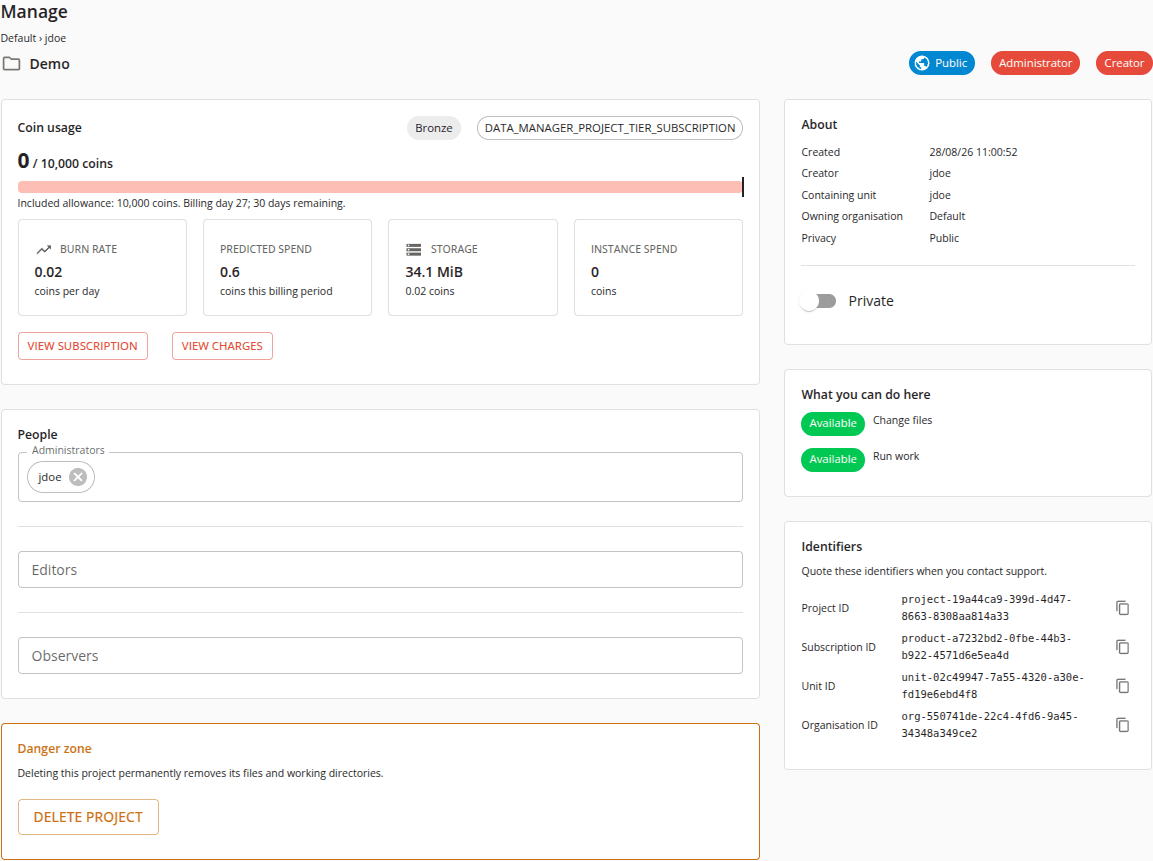
The heading
The section titles itself Manage, as Files, Run and Results each do, so you can always tell which section you are in. Beneath that it names the owning organisation and containing unit, then the project itself, and beside the project a row of chips: whether it is Private or Public, and every role you hold in it — Administrator, Creator, Editor, Observer — or No project role where you hold none.
Two of those roles decide what you may do. An Editor may change the project's files and run work in it; an Administrator may do both of those and change the project's people, change its privacy, and delete it. Creator records who made the project and carries no authority of its own, and an Observer may only read. Authority over a project comes from that project's own lists and from nothing else, so an administrator of the platform who holds no role here reads the project exactly as any other viewer does.
Where you hold neither of the roles that can change anything, the section says so beneath the heading. That is a different thing from a change being blocked: an editor whose subscription has reached its coin limit is not read-only, and meets the reason on the control itself rather than in a banner.
Coin usage
Coin usage states what the project's subscription has spent and what it is allowed. Beside the heading, a labelled colour chip shows the project's subscription tier.
The headline figure is the coins used out of the coin limit, with a bar beneath it that changes colour as the limit approaches — plain until four fifths of the limit is spent, then a warning, then an error once the limit is reached. The mark on the bar is the included allowance: spending beyond it is allowed but costs more per coin, whereas the limit itself cannot be exceeded at all. Beneath the bar is the allowance in figures, the billing day, and the days remaining in the current billing period.
Four tiles break that down:
- Burn rate - coins per day.
- Predicted spend - coins projected for this billing period.
- Storage - the storage size, captioned with the coins it has used.
- Instance spend - the coins execution has used, where that figure is available.
If the subscription has reached its coin limit, the card says so and the actions that would spend more are disabled.
View subscription and View charges lead to that subscription in Administration, which holds the detailed ledgers. They are offered where the subscription is one this application can address; where it is not, the card ends at the tiles.
People
People holds the project's administrators, editors and observers, and is where you add and remove them. What each role can do is described on the Concepts page.
Each list is a field of names. Opening it offers the users the Data Manager knows about, and a name it does not offer can be typed and committed as it stands; the cross beside a name removes that person. The three lists are sent separately, so each answers for itself, and its answer — including a refusal — appears beneath the list it belongs to, leaving the field ready for another attempt.
Only a project administrator can change any of the three. Where you may not, they are still shown — you can always see who can reach the project — and each states what it requires.
About
About states when the project was created and by whom, its containing unit, its owning organisation, and whether it is private. Beneath those facts is the switch that changes the project's privacy, which a project administrator alone may use.
The switch states the project's own privacy rather than what you asked of it: while a change is in flight it shows the privacy it is applying, and once the project has answered it shows the privacy the project has. A change that is refused is reported beneath the switch and changes nothing.
Evaluation tier projects cannot be made private. That rule belongs to the platform rather than to this page, so the switch is offered to an administrator of such a project as it is to any other, and the refusal arrives when it is used.
What you can do here
What you can do here answers the question directly, for the two things that matter most:
- Change files - whether you can add to and modify the project's files.
- Run work - whether you can launch workflows, applications and jobs in it.
Where either is unavailable, the reason is stated beside it — a role you do not hold, or a subscription that has reached its limit.
Available is what this page could establish rather than a promise. Where your own account has not been read yet, an action stays available and says that your permission will be confirmed when you use it: the Data Manager is the authority on what you may do, and this page does not withhold an action it is not the one enforcing.
Identifiers
Identifiers lists the project ID, product ID, unit ID and organisation ID, each with a control beside it that copies it. Quote these when you contact support.
Danger zone
Deleting a project permanently removes its files and working directories. You must be a project administrator to delete it.
Delete project asks you to confirm first. The confirmation names the project, states that every file and working directory it holds goes with it and that this cannot be undone, and says what becomes of the subscription behind it: that subscription is removed only after the Data Manager confirms the project's data was deleted. Where the project holds no subscription this application can address, the confirmation says so, and only the Data Manager's own data is removed.
Following a deletion
Confirming sends the request and takes you to a page that follows it. That page belongs to the deletion rather than to the project — the project stops being readable partway through — so it remains available once the project can no longer be opened, and its address resumes the same deletion if you reload it or return to it later.
It reports each phase in turn: the Data Manager deleting the project's data, then the subscription being removed, then that both are done, after which you are returned to Projects.
Where a phase does not complete, the page says which and offers that step again — Check again for a data deletion it could not confirm, Retry subscription deletion for a subscription that was not removed. A data deletion that failed leaves the subscription exactly as it was, and says why: a project whose data was not deleted must keep the record that describes it. The deletion task's own identifier is stated throughout, to quote to your Squonk administrator.
A view across many projects
Manage is the best starting point for one project. For a view across an organisation or a unit, use Usage & Inventory under Administration, which is read-only.