
Files
Your project has its own data volume (a directory containing your project's files). That volume is accessible to everything you run in the project, providing a simple way to work with your data.
A project's Files section shows that data and lets you perform simple operations on it. It's a bit like a simple file manager such as Windows Explorer: it lists the files and directories that are present and lets you navigate them. The current directory is held in the URL, so a directory deep in the tree can be linked to and survives a refresh.
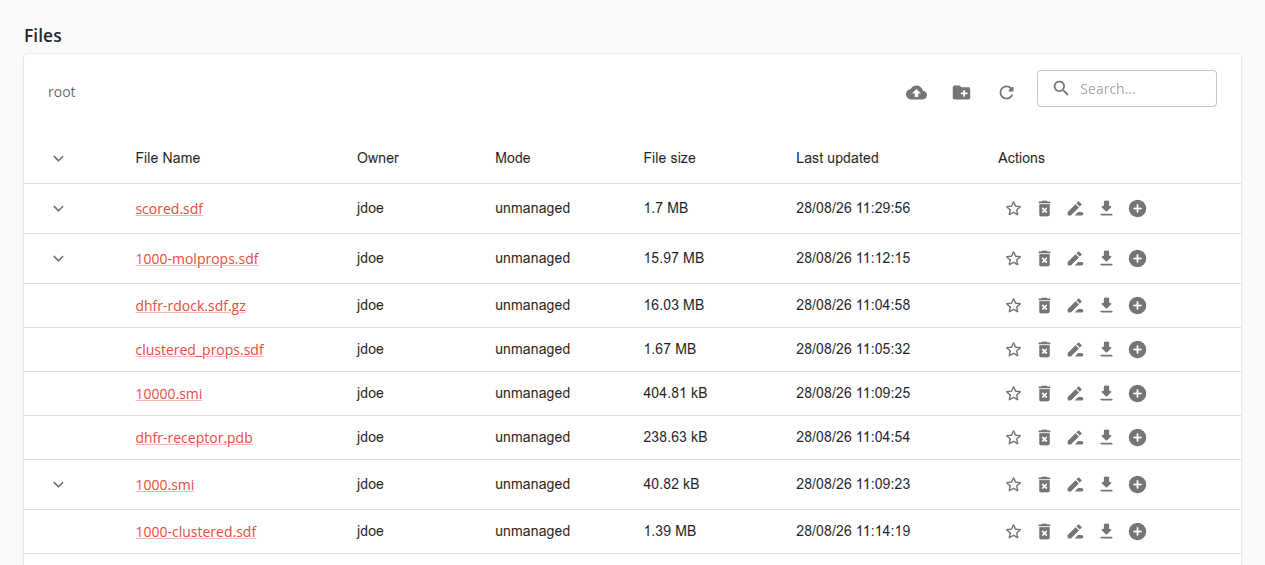
The listing
Sub-directories are listed first and files after them. Selecting a directory opens it, and the path above the listing walks back out again — each name in it addresses that directory.
Each row states the file name, its owner, its mode, its size and when it was last updated, and offers the actions available for it. A directory states none of those, because they belong to the files it holds rather than to the directory holding them.
Where the Data Manager holds a schema or metadata beside a file — a companion named .schema.json
or .meta.json — it is listed beneath the file it describes rather than as a file in its own right.
The control at the start of the row reveals it, and the same control in the heading row opens and
closes every one of them at once.
Search... narrows the listing to matching rows, and every column heading sorts by that column. Neither is held in the URL as the directory is, so both are lost on a refresh.
A long directory is listed a hundred entries at a time; the controls beneath the listing state how many it holds and move between pages. A file's schema and metadata stay on the same page as the file.
The refresh control beside the search field reads the directory again. The listing does not poll, so a file a running job has just written appears when you ask for it.
How a file is held
The Mode column states how the project holds a file, which decides what may be done with it:
- unmanaged - a file the project holds in its own right, such as one you uploaded or one a job wrote. It can be renamed, moved and deleted.
- editable - a dataset version attached to the project. What the project holds is a link to the dataset rather than the file itself, so the file is detached rather than deleted, and it cannot be renamed or moved.
- immutable - an attached dataset version the Data Manager has fixed, so that nothing in the project can replace it. It is already a dataset version in its own right, so a new dataset cannot be created from it either.
Which of the two an attached version arrives as is chosen when it is attached; see the Datasets guide.
What a row offers
Each row ends with the actions available for it. Where you may not use one, it states what it requires rather than disappearing.
A directory offers three: marking it as a favourite, deleting it — which deletes everything beneath it as well — and renaming or moving it.
A file offers the same three, with two differences, and two more besides:
- What the delete control does depends on how the file is held. A file the project holds in its own right is deleted; an attached dataset version is detached, which removes the project's link to it and leaves the dataset itself untouched.
- Rename or move is offered for the project's own files, but not for an attached dataset version.
- Download brings the file to your own machine.
- Create a dataset from this file makes a dataset from it, billed to the unit the project belongs to. A file whose type the Data Manager cannot establish is reported rather than sent, and a file that is already a fixed dataset version does not offer it.
Deleting a file, detaching one, and deleting a directory each ask you to confirm before they are sent.
Renaming and moving
Rename or move opens one field, Destination Path, filled in with the item's own path relative to the project root. Changing the last name in that path renames the item; changing the directories before it moves the item there. One control does both, which is why it is named for both.
A path may hold letters, digits, ., - and _, separated by /, and may neither begin nor end
with a separator. A name containing a space therefore cannot be typed here.
Adding files and directories
The upload control above the listing opens your own file picker for the directory on screen. Dragging files onto the listing does the same thing, and the listing says so as you drag them over it. Several files can be sent at once, each reported as it arrives, and one your browser refused is named rather than passed over in silence.
The control beside it creates a directory inside the one on screen. It takes a name rather than a path — a separator is refused, so a tree cannot be created in one go — and a name the directory already holds is reported rather than sent.
What you need to change files
Adding anything to a project, changing what is in it, and removing anything from it all require that you be a project editor or administrator, and none of them is possible while the project's subscription is at its coin limit.
Reading is not restricted in the same way. An observer can navigate the listing, view a file, download it, and mark it as a favourite.
Where the listing could not be established — because it is out of date or could not be read at all — nothing in it can be changed, and the section says so rather than offering actions that would fail. Where the read failed in a way that can be tried again, the section offers that too.
Favourites
The star at the start of a row's actions marks that file or directory as a favourite of the project it belongs to. Nothing in the Data Manager changes, which is why it is offered whatever your authority in the project, and a favourite is remembered only while the application is open, so a refresh clears it.
Favourites are for choosing job inputs quickly: the file picker of a launch form offers Show favourite files, which lists the favourites of that project — and only those of a type the input accepts. See the Run guide.
Viewing a file
A file name offers the viewers that file supports. Each viewer is its own URL, so a view of a file can be linked to:
- Plaintext Viewer - displays the file as plaintext. This is the default, and every file offers it.
- Browser Viewer - displays the file in your browser if it supports the file type.
A viewer replaces the listing with the file itself. Back to files returns to the directory the file is in, and the other viewers that file offers stand beside it, so you can move between them without going back first. A URL naming a file the project does not hold, or a viewer that file does not offer, lands in Files with a notice saying so rather than on an error page.
Files the Data Manager holds compressed are decompressed for the viewer, and the viewer says that it did so. The Plaintext Viewer shows the first 100 kB of a file, cut at the end of a line, and says when it has truncated one — worth remembering when reading a long log.
When Files is not enough
Not everything you might want to do is possible from Files. Where it is not, launch the Jupyter Lab application in your project: it gives you the same volume through its own file manager, and a console (bash shell) besides. See the Run guide for more details on launching Jupyter Lab.
Log files
The Logs action on a job result opens that instance's own log directory here in Files, so reading a job's logs is reading the files it wrote. See the Results guide.