
Run
A project's Run section is the catalogue of everything you can launch in that project: workflows, applications and jobs. Whatever you launch runs in the project in the address bar, with access to that project's files.
What is available is decided by the system administrator of this deployment. Running any of it requires that you be a project editor or administrator.
The catalogue
Everything you can launch is presented as a card, and every card is laid out the same way, so you meet the same arrangement whichever kind you are looking at. Not every kind fills every part of it — a job card, below, is the fullest:
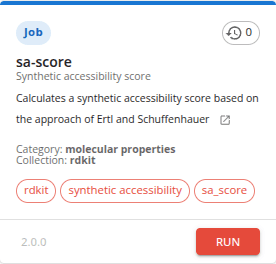
Reading that card from the top:
- The coloured bar and the chip below it say what kind of definition this is — a Job here, or an Application or a Workflow. Each kind keeps its own colour wherever it appears.
- The chip on the right counts how many times the version the card is offering has already run in
this project. Selecting it opens the project's Results
narrowed to that same version. A card never lists its own executions; this count is the way to
them. A chip reading
…is still counting; one reading!could not read the executions at all — that is the count failing, not the job. Hovering a chip says which it is. - The heading is the definition's identifier —
sa-scoreabove — and the line beneath it the fuller name it is published under, here Synthetic accessibility score. The launch dialog leads with that fuller name, so the two screens name the same definition differently on purpose. - Then its description, followed by a link to its published documentation where it has any — the small icon at the end of the text above. An application publishes neither.
- A job states its Category (the kind of job it is, here molecular properties) and its Collection (where it comes from, here rdkit). A workflow states its Version here instead. An application states neither, because the line under its name is already its group.
- Its keywords, as chips —
rdkit,synthetic accessibilityandsa_scoreabove. These are among the terms the search field matches. Only a job publishes keywords. - The footer holds the Run control on the right, and for a job the version it is offering on
the left.
sa-scoreis published in a single version, so its version is stated but cannot be chosen. An application or a workflow puts nothing there, leaving the footer to Run alone.
Narrowing the catalogue
Filter narrows the catalogue by kind — Workflows, Applications and Jobs. The search field matches the terms each definition declares: for a job, its keywords, category, name and description. For instance, jobs implemented using RDKit should be labelled as "rdkit", so typing "rdkit" into the search box shows only cards carrying that keyword; the keywords for each definition are displayed as chips towards the bottom of the card. The field's label states its shortcut — Ctrl+F, or ⌘F on a Mac — which focuses it in place of the browser's own find.
Both controls are held in the URL, so a narrowed catalogue can be shared and survives a refresh.
The refresh control reads the catalogue again. If part of it could not be refreshed, the section says so, and definitions that could not be refreshed cannot be run until they load again.
Job versions
A job may be published in several versions. A card opens on the newest of them, and the menu lists them newest first. A version the Data Manager has marked as replaced is not offered at all, so a version you ran before may no longer be there.
The version control in the card's footer states which version the card is currently offering and lets you choose another. Choosing one moves more than the footer: the description, its documentation link, the category, the collection and the keywords are all the selected version's, as are the execution count and the Run destination. What you read and what you would launch can never disagree.
What you need to run anything
You must be a project editor or administrator; an observer cannot run work. Two further things stop a launch:
- the project's subscription is at its coin limit, so nothing more can be run;
- the project's subscription does not account for instances, so running work cannot be established as safe.
All three are stated in one place, above the catalogue, rather than repeated on every card — and nothing is stated at all when nothing prevents you from running. What a particular version requires beyond that is stated by the dialog that launches it.
Running a job
Clicking Run opens that definition at its own URL — so a launch form can be linked to and survives a refresh — and presents a dialog for the inputs and options.
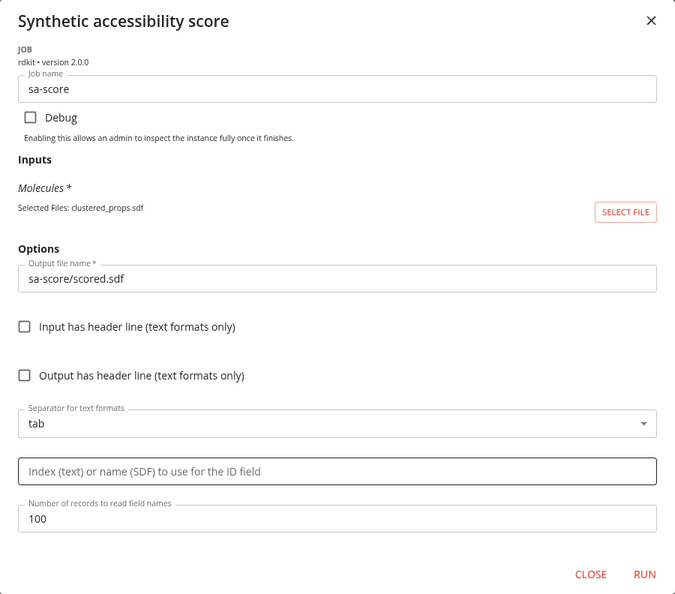
The dialog is headed by the definition's own name, and beneath it the kind, the collection it comes from and the version being launched — above, a Job from the rdkit collection at version 2.0.0. Job name names this execution so that you can recognise it later under Results; it arrives filled in with the job's own identifier, so it is worth changing to something that will distinguish this run from the next. Debug lets an administrator inspect the instance once it has finished.
Inputs are the project files the job works on. Select file opens the project's files to choose from, and what you choose is then listed beside it.
Some jobs also accept molecules entered directly. Those offer a Method choice between SMILES and Files. Choosing SMILES gives a row per molecule — a SMILES field, a control that deletes it, and one that opens a sketcher to draw the structure instead — and Add Molecule below to add another. Only one sketcher may be open at a time, and Save writes what you drew back into the field as SMILES.
Switching Method clears what you have entered, since files and molecules are not interchangeable.
Options are user-specified parameters for the execution — above, whether the input and output
carry header lines, the separator to use for text formats, and which field identifies a record. An
important option is often the name of the output file. Putting a job's outputs in a subdirectory of
their own is worth the trouble: one job's output then cannot overwrite another's. Most jobs are
implemented so that you can specify a full path to the file you want, including subdirectories: the
example above writes sa-score/scored.sdf, and the directory sa-score/ is created for you (from
the project root).
Specify these inputs and options and click Run at the bottom, which stays unavailable until every required input — each marked with an asterisk — has been supplied. A successful launch opens what it created under Results, so you follow the work that was actually started. Closing the dialog instead returns you to the catalogue exactly as you left it.
A launch that is not accepted keeps the dialog, its route and everything you entered. The dialog states which of two things happened:
- The Data Manager refused it. Nothing was launched, and neither the project nor the catalogue beneath the dialog has changed.
- It could not be completed. Nothing was launched either, but the attempt can be sent again — correct whatever it named and use Run once more.
While a launch is in flight it cannot be sent twice; Run is unavailable until the Data Manager answers.
A job that launched and then failed is a different matter: it exists, so it has left something to read. Its Logs action under Results opens that instance's own log directory in the project's Files, which is the first place to look when a run did not do what you expected.
When a job cannot be run
Beyond what the project requires, the Data Manager can disable a job, and no authority overrides that — a project administrator cannot run a disabled job any more than an editor can. Disabling is per version, so one version of a job may be disabled while another is offered.
The catalogue does not mark a disabled version; you meet it when you open the launch dialog, which states the Data Manager's own reason and does not offer Run. Where you also lack the authority to run work in the project, both are stated, so a version you could not have run anyway is not hidden behind the authority you lack.
Running an application
An application is a relatively long-running process that lets you perform some work. Unlike a job, which runs once and finishes, an application keeps running until it is stopped.
Which applications a deployment offers varies. They can include:
- JupyterNotebook — a notebook, console and shell over your project's files, through the Jupyter Lab interface.
- DataVisualisation — an interactive workspace for plotting your data.
Each is launched the same way, and each is listed under Results while it runs, which is where you open and terminate it.
Finishing with an application
An application runs until it is stopped, so terminate one from its card under Results when you have finished with it. That frees the resources it was holding.
An application may also be terminated for you. Where a deployment gives one an inactivity timeout, an instance left idle for longer than that period is stopped automatically.
Nothing is lost either way. What an application produced is in the project's own directory, which outlives every instance — so if you need to carry on, launch a new instance and your files are where you left them.
JupyterNotebook
Its card in the catalogue is a plainer thing than a job's:
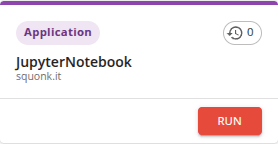
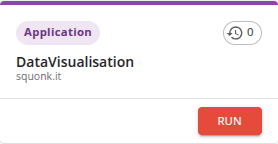
An application publishes no description, category, collection or keywords, and it has a single
version, so the card carries its kind, its execution count, its name, the group it belongs to —
squonk.it above — and the Run control, and nothing else.
Clicking Run opens the launch dialog:
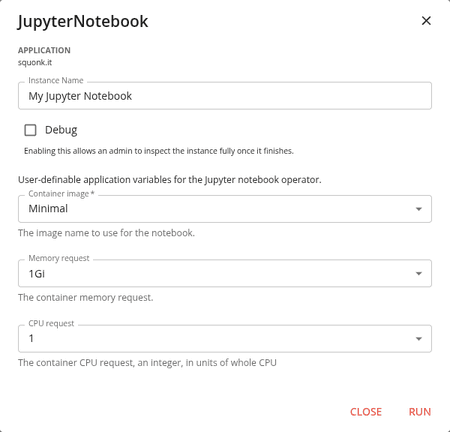
Most importantly, give the Instance Name a sensible value so that you can recognise this instance later under Results. Then specify the Container image, which defines the type of notebook image to run. These are images from the standard Jupyter project, and the choice offered is the one the Data Manager publishes with the application — an image you need that is not on the list is one for this deployment's administrator to pursue.
You might also want to specify additional memory or CPU requests, but only do this if you actually need those extra amounts.
When ready, click Run. A new container running that type of notebook is launched in the cluster and given access to the project's volume, and you are taken to it under Results. From its card there, Open opens the Jupyter Lab interface in a new browser tab.
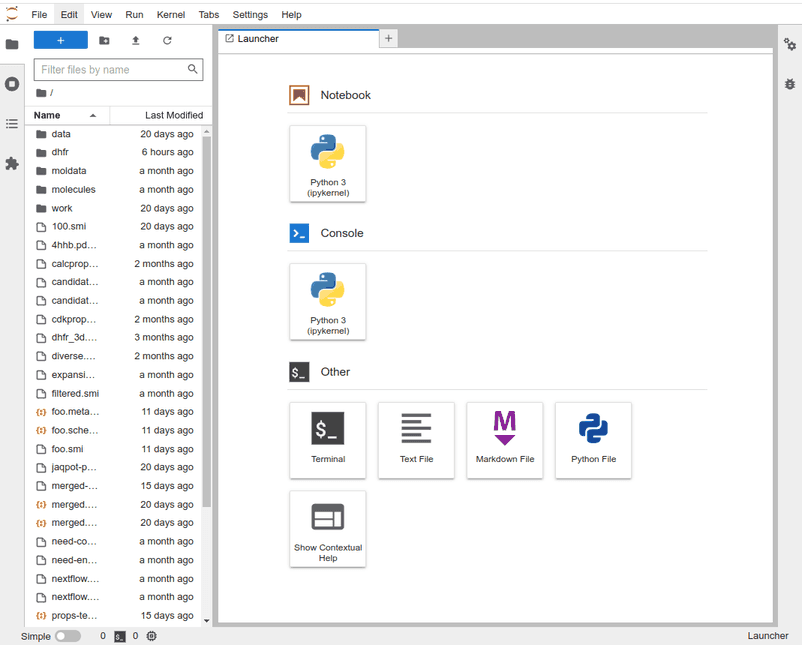
Using Jupyter Lab itself is the Jupyter project's own subject, and the JupyterLab documentation covers it. What matters here is that the notebook, the Python console and the terminal it offers all have full access to your project's data — the file explorer on the left is your project's volume.
What the interface offers varies with the container image you chose at launch: choose the r notebook image and you will find R where Python would otherwise be.
The images use the Conda package manager, and do not all carry the chemistry packages you may want.
To install RDKit, run this in a terminal, or as a notebook cell prefixed with !:
conda install -y -c conda-forge rdkit
A large package takes a while, but only once in the lifetime of the instance.
DataVisualisation
DataVisualisation builds interactive plots of your data. Its card carries the same fields as any other application:
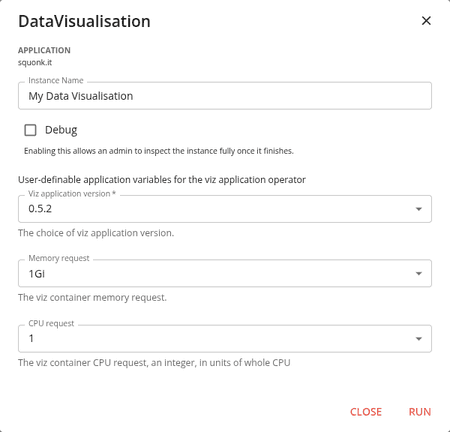
Its launch dialog asks for one thing the notebook's does not — the Viz application version to run, which is required:
Opening the running instance gives you a canvas to build a visualisation on from your project's data
files. Your work is saved in the project, in a .visualisations folder, so it is shared with the
project and is still there the next time you launch.
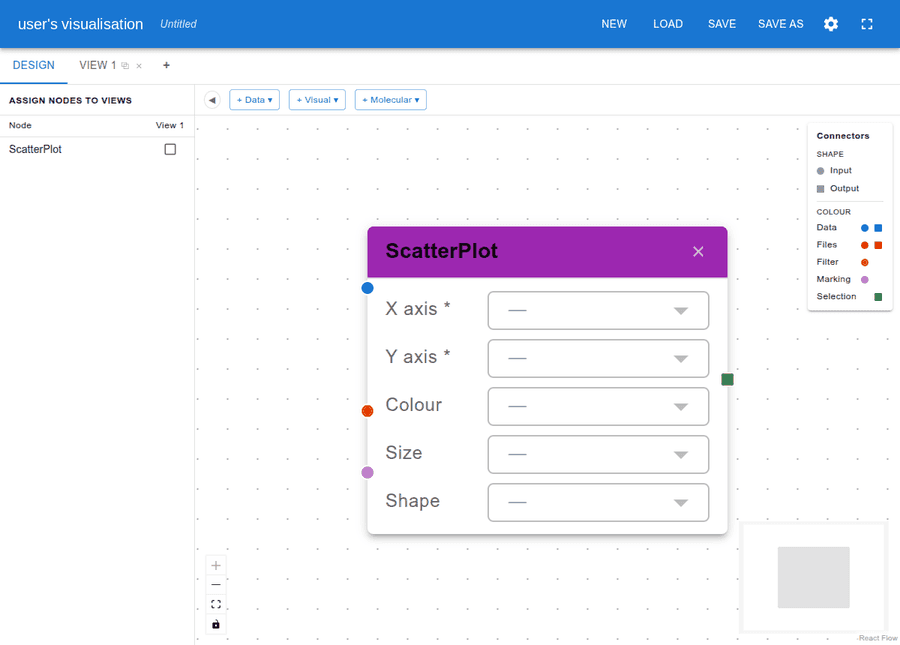
Using DataVisualisation itself is the application's own subject, and its user guide covers it — nodes, connections, views and the charts and molecular viewers on offer.
Running a workflow
A workflow is a defined sequence of steps run as one thing. It is launched exactly as a job is — find it in the catalogue, click Run, supply its inputs and options — and its progress is followed step by step under Results, where the steps of a running workflow are listed inside it.
A workflow definition has one version, so its card states the version as a fact rather than offering a choice.
Where the definitions come from
The definitions available here are deployed by this installation's administrator; see Deployed jobs. A guide to creating new jobs is linked from the Concepts page.